Picture this: It is a Tuesday afternoon. You are wrapping up a client meeting when your phone buzzes. It is the owner of an e-commerce site you manage, and they are panicking. Their customers are complaining that they cannot access the store because of a weird “security check” that is asking them to press strange keys on their keyboard.
You quickly load up the URL on your phone. At first glance, everything looks perfectly normal. The site loads fast. There is no giant, glowing “YOU HAVE BEEN HACKED” message splashed across a black screen. There are no weird redirects pulling you to sketchy cryptocurrency scams.
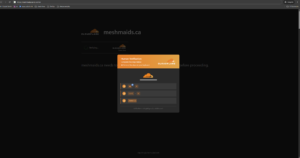
Instead, right over the normal content, you see what looks exactly like a standard Cloudflare human verification screen.
The branding looks totally legitimate. The page structure is perfectly copied. The visitor, conditioned by years of clicking “I am human” across the modern web, assumes they are just completing a normal, everyday verification step to access the content.
But they are not.
The malicious code has turned the WordPress site into a delivery mechanism for a highly deceptive fake verification page, tricking the user into compromising their own personal device. This is one of the most frustrating and clever malware campaigns we have seen targeting WordPress agencies recently.
Let us break down exactly how this “ClickFix” campaign works, why it bypasses standard security, and how you can definitively track down and remove the hidden code from your client’s website.
Example of the fake Cloudflare-style verification screen encountered on a compromised WordPress site. Cloudflare is not responsible for the malicious page.
The Psychology: Why the Fake Cloudflare Screen is So Dangerous
This campaign, widely tracked by cybersecurity researchers as “ClickFix,” relies entirely on human psychology and social engineering rather than exploiting fancy browser vulnerabilities.
We trust security screens. When a user encounters the fake verification screen, they are prompted to perform a manual action to prove they are human. Usually, this involves a specific set of instructions: “Press Windows Key + R, paste the verification code, and press Enter.”
The prompt actually copies a malicious PowerShell script to the user’s clipboard. Because the user is opening their own terminal and executing the command themselves, it bypasses browser sandboxing, endpoint antivirus, and standard security controls. The user is essentially hacking themselves, thinking they are just solving a CAPTCHA.
For the web agency managing the WordPress installation, the danger lies in how the malware establishes itself. Attackers compromise a WordPress installation and inject code into locations that are incredibly difficult to spot from the normal WordPress admin interface.
The frontend can remain perfectly functional for administrators while the malicious code executes silently in the background for regular visitors. It is specifically designed to:
- Selectively target victims: It injects content based on the visitor’s User-Agent, browser, or geolocation.
- Overlay flawlessly: It displays the fake verification page seamlessly over your legitimate content, so the URL still looks right.
- Evade admin detection: It actively hides its presence from logged-in WordPress administrators so you do not see it when you log in to update plugins.
- Maintain deep persistence: It survives basic cleanups by hiding in Must-Use (MU) plugins, hidden database tables, or deeply modified core files.
- Communicate with C2 servers: It constantly pulls fresh, obfuscated payloads from external command and control (C2) infrastructure.
Finding the fake page on the frontend is the easy part. Finding the mechanism that keeps putting it there, even after you think you have cleaned the site, is where the real work begins.
The Technical Investigation: Finding the Hidden Malware
When a client reports seeing a fake verification screen, or when your automated monitoring tools flag anomalous behavior, your investigation has to go much deeper than simply looking at the active plugins list.
A WordPress website hacked by this specific campaign requires a structured, forensic approach. You have to assume the attacker is actively trying to deceive you.
1. Start with the Visible Symptom
If you manage to reproduce the fake Cloudflare verification WordPress prompt, do not immediately assume your homepage index.php file is the sole infected asset. The payload is almost always delivered dynamically via JavaScript.
Check the page source carefully. You are looking for the mechanism that loads the overlay. Often, this involves heavily obfuscated JavaScript designed to evaluate environment conditions before presenting the lure.
Developer Insight: Compare the experience of an authenticated administrator session versus an anonymous browser session. ClickFix malware frequently suppresses the payload when an admin is logged in. Use an Incognito window, or better yet, curl the site from a terminal to see the raw output without executing the JavaScript.
2. Audit the Plugins Directory (The Real One)
The most common delivery method for this payload is a malicious WordPress plugin uploaded to the environment by the attackers using compromised administrator credentials.
Do not rely solely on the WordPress dashboard interface. Malware frequently hooks into the all_plugins WordPress filter to actively hide its folder from the admin view. You must navigate to your wp-content/plugins directory via SSH or SFTP.
Look for:
- Unfamiliar plugins you never installed.
- Recently modified plugins (check the file timestamps).
- Plugins whose directory names follow suspicious patterns (like randomized strings or misspelled brand names).
- Disguised PHP files hidden within seemingly legitimate, popular plugin folders.
3. Check MU-Plugins and Drop-ins
This is where a lot of smaller agencies get caught out. Most developers do not routinely inspect the wp-content/mu-plugins/ directory. Must-Use plugins execute automatically before normal plugins load, and they cannot be disabled from the standard WordPress dashboard.
Attackers heavily abuse this directory to establish persistence. If a standard security scanner deletes a visible malicious plugin, an infected MU-plugin can simply recreate that malware on the very next page load.
Inspect the directory for unexpected PHP files or recently modified scripts. Also, check for unexpected WordPress drop-ins (like advanced-cache.php or db.php) that may have been compromised to execute code early in the WordPress boot sequence.
4. Hunt for Obfuscated Code Patterns
Malicious code rarely sits in a file looking like readable, standard JavaScript or PHP. Attackers use aggressive encoding and transformation techniques to make the actual behavior impossible to read at a glance.
You should be searching your server for indicators including functions frequently used to hide payload code, such as eval(), base64_decode(), gzinflate(), and str_rot13().
An important distinction: Seeing base64_decode does not automatically mean malware. Legitimate WordPress premium themes and plugins use encoding for licensing or data serialization. Detection requires context. A massive, unintelligible block of base64-encoded data injected at the very top of wp-config.php is a massive red flag. A tiny encoded string inside a caching plugin might be totally benign.
5. Trace Outbound Connections
The fake human verification page has to pull its styling resources or staging commands from somewhere.
Look for suspicious external domains being referenced by your PHP scripts, injected JavaScript, database content, or raw HTML. If the site is suddenly loading resources or communicating with infrastructure that has absolutely no legitimate relationship with the client’s business, you need to investigate that domain. Attackers often cycle through newly registered .biz or .top domains for this.
6. Audit the Database for Ghost Admins
A compromised WordPress site is not necessarily fixed just because you deleted one suspicious plugin via FTP. Modern malware lives in the database.
Investigate the wp_options table for suspicious entries, injected <script> tags, persistent markers, or unusual serialized data. Malicious scripts can be stored as option values and executed by a tiny, seemingly innocent loader script hidden elsewhere.
Furthermore, audit the wp_users table for unexpected administrator accounts. “Ghost Admin” malware often creates accounts and then uses PHP hooks to hide the account from the user list in the dashboard, creating a permanent WordPress backdoor that survives password resets.
7. Look at the Timestamps
Timestamps are a highly valuable, often overlooked forensic signal.
If hundreds of unrelated files suddenly change within the exact same minute, you have a massive problem. A human developer updating a plugin manually changes files within a specific, isolated directory. However, if 337 files are modified across core, themes, and multiple unrelated plugins at exactly 2:20 AM, that strongly indicates an automated botnet or worm is rapidly injecting code across your file system.
8. The WordPress Malware Investigation Checklist
When responding to an incident involving deceptive payloads like ClickFix, ensure your WordPress malware detection investigation covers these exact areas:
wp-content/plugins/(Via FTP, not the dashboard)wp-content/mu-plugins/- WordPress drop-ins
wp-content/uploads/(Looking for executable PHP hiding in image folders)wp-admin/js/wp-config.php.htaccess(Check for malicious redirects)- Database (
wp_optionsandwp_users) - External URLs and C2 indicators
- File modification timestamp anomalies
Preventing the Fake Cloudflare Hack in the Future
Once you have cleaned the site, your job shifts to prevention. How do you stop this from happening to the other 49 clients in your agency’s portfolio?
- Enforce Strict 2FA: The vast majority of these infections start because a hacker brute-forced or purchased a compromised administrator password. Enforce Two-Factor Authentication for every single user role capable of modifying posts or installing plugins.
- Audit Stale Accounts: That developer you hired for a quick fix six months ago? Delete their account. Stale administrator accounts are the easiest entry point for automated attacks.
- Automate Your Core Updates: Outdated plugins are the doorway malware uses to get in. If you are sitting on plugin updates for weeks because you are afraid of breaking a layout, you are taking a massive risk. Use automated visual regression tools to update safely and frequently.
- Deploy a Web Application Firewall (WAF): A robust WAF can identify and block the automated bots probing your site for known vulnerabilities before they even reach your WordPress code.
We Built SiteOps Because Finding One Infected File Isn’t Enough
This is exactly the kind of highly evasive incident we designed the SiteOps autonomous WebOps platform to handle.
When you manage a growing agency, manual malware hunting is simply not profitable. A standard scan does not stop at checking whether WordPress reports that all plugins are active and up to date. SiteOps looks deep across the installation for indicators that can survive a normal plugin check.
SiteOps acts as an autonomous security analyst, proactively checking for:
- Live IOC and C2 indicators from global threat databases
- Suspicious outbound URLs inside your database
- Obfuscated PHP and base64 payloads
- Executable PHP hidden inside your media uploads directory
- Timestamp mass-modification anomalies
wp-config.phpand.htaccessintegrity breaches- Hidden WordPress MU-plugin malware and drop-ins
- Database health and Ghost Admin backdoor indicators
- Disguised PHP extensions
And importantly: Your hosting provider doesn’t have to be your security provider.
Think one of your client sites might already be compromised?
Connect it to SiteOps and run a security scan. You do not need to move hosting. You do not need to migrate DNS. You do not need to replace your existing infrastructure.
Connect the WordPress site, scan it, investigate the forensic findings, and execute your WordPress malware removal with confidence.
Try SiteOps on up to 3 sites free.
Frequently Asked Questions
What is the fake Cloudflare verification hack on WordPress? It is a social engineering attack where a compromised WordPress site displays a fake “Verify you are human” page that perfectly mimics Cloudflare or standard CAPTCHAs. Instead of verifying humanity, the prompt tricks the user into copying and executing a malicious script on their own computer.
How does the ClickFix malware actually infect a device? When a user clicks to verify, the malware copies a malicious PowerShell command to their clipboard. It then displays instructions telling the user to open their terminal (e.g., pressing Windows Key + R) and paste the code. Because the user executes the code themselves, it bypasses browser security and antivirus software.
Can my standard security plugin catch this malware? Standard security plugins often miss this malware because it uses highly obfuscated code and actively hides itself. The attackers frequently use “Must-Use” (MU) plugins or inject code directly into the database, which surface-level file scanners may overlook.
Why is the fake verification screen only showing on some devices? The malware is designed to be evasive. It often uses conditional logic to hide itself from logged-in WordPress administrators, search engine bots, or specific IP addresses. This makes it difficult for site owners to realize their site is infected while their regular customers are being attacked.
How do attackers get the malicious plugin onto my WordPress site? Attackers typically gain entry by exploiting a known vulnerability in an outdated plugin or theme, or by compromising weak administrator credentials (often via brute-force attacks or leaked passwords). Once inside, they upload the malicious payload.
How can agencies prevent this specific attack? Agencies must implement proactive security: enforce Two-Factor Authentication (2FA) for all admins, delete stale user accounts, deploy a Web Application Firewall (WAF), and use automated tools to ensure plugins are updated immediately when CVE vulnerabilities are announced.
Does deleting the malicious plugin fix the site? Usually, no. Attackers establish “persistence” to ensure their malware survives a basic cleanup. They may create hidden “Ghost Admin” accounts in your database, modify your .htaccess file, or hide backup scripts in your mu-plugins folder. You must conduct a full forensic audit to ensure the site is clean.